Request Time Off
The Request Time Off module allows you to request time off for yourself or your Employees (depending on your access).
Note: Punch Employees can request time off through the Kiosks.
Requesting Time Off
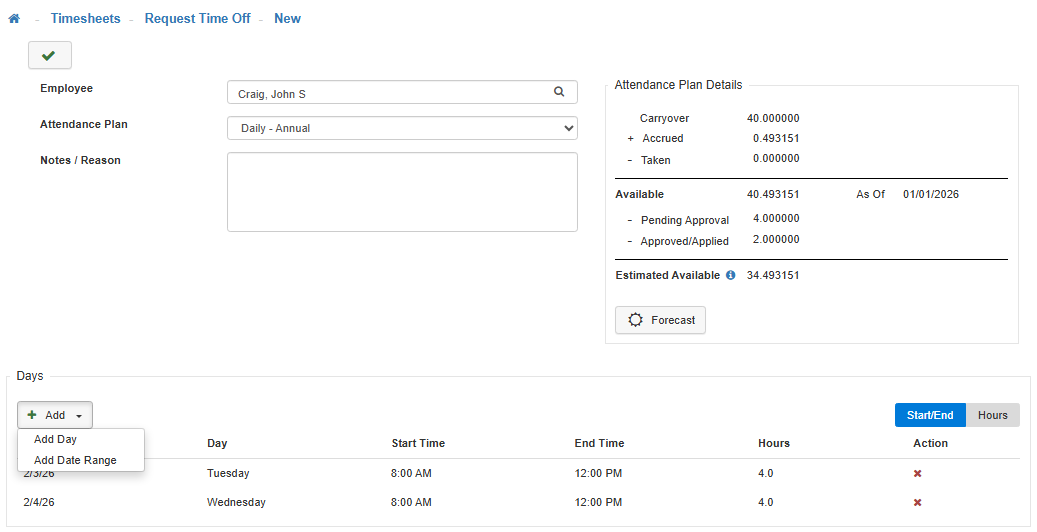
-
Employee
Select the 'Employee' you are entering the Time Off Request for.
Note: If you have access to more than yourself it is because LightWork is setup to allow all Managers to submit requests for Employees. -
Attendance Plan
Select the 'Attendance Plan' that correlates with the Time Off Request.
Note: In the 'Request Time Off' section, you can monitor the Attendance Plan Details relevant to your leave request. These numbers reflect the time as of the last sync LightWork completed with the HRMS system. If you see any details that are vastly different than expected, contact your HR department. -
Pay Code
Select the proper 'Pay Code', if applicable.
Note: If an Attendance Plan has multiple Pay Codes associated with it those will become available. -
Notes/Reason
Write any information related to the Request in the 'Notes/Reason' section. -
Attendance Plan Details
The details for the Attendance Plan selected are located on the right-hand side of the screen.
Note: This area will populate when an Attendance Plan is selected. If this area does not look accurate contact HR, as it may mean that an import hasn’t been run since the last payroll.-
Carryover
The total amount of time (hours or days) carried over from the previous year (the available balance on the day of the year-end close). The effective date for carrying over the unused time from previous years or from the close date that resulted in the Carryover. The system updates this date anytime the Close Accrual Year process takes place. -
Accrued
The total time accrued (hours or days) for the employee in this Attendance Plan. -
Taken
Displays the total number of hours or days the Employee has taken for this plan in the current accrual year. This is based on all absence transactions that have a Pay Code associated with this plan. -
Available
Time Available = ‘Carryover’ time + 'Accrued' time - 'Taken' time. -
As Of
Based on the Accrual Actions, the ‘As Of’ date displays the date the Available amount was last updated. -
- Pending Approval
Displays the total number of hours requested on a Time Off Request for this plan (and current Plan Year) that have been submitted by the Employee but have not yet been Approved by their Manager. -
- Approved/Applied
Displays the total number of hours the Employee requested on a Time Off Request for this plan (and current Plan Year) that have been Approved by their Manager but have not yet been exported to your external HRMS system. -
Estimated Available
Displays the potential Available time if all Time Off Requests are approved and used within the Plan Year. Estimated Time Available = 'Available' time - 'Pending Approval' time - 'Approved/Applied' time.
-
-
Forecast
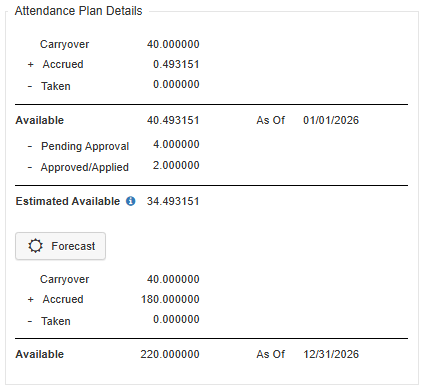
The Attendance Details section of the Time Off Request screen has been updated and now includes the ability to Forecast directly from this screen. To do so select the Forecast button enter the desired Process Through date you’d like to forecast through and select Okay. This will then change the Attendance Plan Detail screen to display the Carryover, Accrued, Taken, and Available values as of the date selected. The Forecast functionality is available when submitting the request as well as when approving the request so this can be used by both the user submitting the request as well as the approver reviewing the request. The Forecast functionality does not currently the '- Pending Approval', '- Approved/Applied', and 'Estimated Available' values as part of its calculations.
Note: The Forecast functionality in the Attendance Details section of the Time Off Request screen is currently only available for internal LightWork Attendance Plans and will not be available on Attendance Plans from an external system. If you would like to subscribe to the LightWork Attendance module, please reach out to our Support Team, or your LightWork Consultant. -
Adding Days
Click the 'Add' drop-down menu. -
Add Day:
-
To add days individually select the 'Add Day' option from the drop-down menu.
-
Once added, adjust the 'Date & Time' that correlates with the time off you or the Employee will be taking.
Note: You can add as many individual days as needed. -
Add Date Range:
-
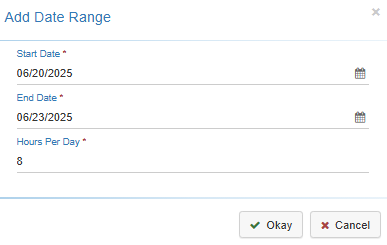
To add a date range select the 'Add Date Range' option from the drop-down menu.
-
In the pop-up window provided, fill out the 'Start Date', 'End Date', and 'Hours Per Day' that align with the time off you or the Employee will be taking.
Note: This will automatically exclude any days, within the date range selected, that are not setup as 'Work Days' in the General tab of the Pay Policy Maintenance for the Pay Policy assigned to the Employee, if Work Days are not set up for that Pay Policy no days will be excluded from the date range. -
Select 'Okay' to apply the dates and times to the request.
-
Submit
Once you are satisified with your selections, click on the 'Submit' button in the toolbar. -
Review
Once submitted, you will be redirected to a viewable version of the Request. -
Approval
The request is now available for the Manager's Approval.